
Troubleshooting
This page provides additional information to help you with commonly experienced problems when creating an account or submitting a manuscript. We hope this information is helpful.
I Cannot Create a Submission PDF
This problem usually occurs due to one of the following reasons:
A PDF or complex Word document was uploaded as an Additional File for Review.
One of the mandatory submission forms was uploaded as an Additional File for Review.
The uploaded figure is a full page size or oversized.
Section breaks were used instead of Page breaks, for example, to enable placement of Landscape tables or figures.
The figure or tables in the Word file were not placed "In Line with Text".
Diagrams and flowcharts were created in MS Word
How to Proceed
Make sure the mandatory submission forms and all PDF files are uploaded as "Additional File Not for Review."
Remove the digital files (.jpg, .tif, *.png, etc.). Insert the Figures into our Word manuscript at the end of the document, with the figure caption.
Insert figures and tables inline with text. Floating objects, text boxes, or anchored images will prevent PDF creation.
Additionally, each figure or table should be placed on its own page.Replace ALL section breaks with Page breaks or a blank line. If your manuscript includes Landscape oriented tables/figures, please remove them from the main manuscript. Create a new Word document in which the entire document is formatted as Landscape orientation. Appropriately name the new document (for example, LandscapeTable_YourName.docx). Upload the file as "Additional File for Review."
Do NOT create diagrams or flowcharts in MS Word. Use a program such as PowerPoint and then Export the figure as a .jpg or .png file. Insert the new file into your manuscript.
Since formatting a document in MS Word can be challenging, we provide a pre-formatted RMMJ Initial Submission Template that already meets all system and formatting requirements.
Using this template helps ensure your submission PDF is created correctly and prevents most file-related errors. Be sure to delete the instructions in the template and RENAME YOUR FILE before submitting your manuscript.
Download the RMMJ Initial Submission Template (.docx)
Additional Tips:
Do not use a column layout. Manuscripts must be submitted in a single column, not two or more.
Avoid headers or footers (except for simple page numbers). Remove running titles, author names, or other text from headers/footers.
Avoid unusual or non-Unicode characters. Replace special symbols or decorative fonts with standard text or insert them as symbols.
We recommend using standard Times New Roman, Cambria, Ariel or Calibri fonts.
After correcting your manuscript, re-upload the revised file and try again to complete your submission.
If the problem continues, please contact the RMMJ Editorial Office at administrator@rmmj.org.il and include your manuscript ID.
Troubleshooting ORCID Authentication
If your ORCID iD cannot be validated in our system, it usually means that the name in your RMMJ author account does not exactly match the name in your ORCID record. Both systems must use the same first name (given name) and last name (family or surname) for the ORCID iD to authenticate successfully.
1. Check your name order
Your first name should be your personal (given) name, and your last name should be your family (surname). These must appear in the same order and format in both systems.
✅ First name: Arjun | Last name: Menon
❌ First name: Menon | Last name: Arjun
In some countries—particularly in India and parts of South Asia—official documents often list names in the reverse order (family name first, given name last).
Since international indexing systems such as PubMed and Scopus follow the Western naming convention, it’s important to enter your names correctly. Otherwise, your paper may not be correctly linked to your author record in PubMed or ORCID, and readers searching for your work might not find it under your name.
2. Use your full family name
Please enter your complete family name—not just an initial.
Indexing services cannot uniquely identify authors by initials alone.
✅ Arjun Menon
❌ Arjun M.
3. Check for duplicate ORCID accounts
If you have more than one ORCID record, make sure the iD you enter in the RMMJ system is the one containing your correct and current information.
4. Ensure exact name consistency
Even small differences such as capitalization, hyphens, or extra spaces can prevent validation.
For example, Rao Kumar and *Rao Kumar * (with a trailing space) may be recognized as different entries.
5. Correct Profile / Account settings
Make sure your profile Visibility is set to Everybody.
Inaccessible, incomplete, inaccurate, or insufficiently identifying ORCID records may raise concerns during Editorial Board screening and may affect consideration of a submission.
How to Check Your Name at ORCID.org
To find out how your name is entered in the ORCID database:
Go to https://orcid.org. Do NOT login.
Enter your name in the search field, top right of the screen.

A screen appears listing all names that might match yours.
In the example below, the person's name is "Peter Tom Jones," however, they usually go by the name "Tom." Note that the person has entered their FIRST Name as "Peter Tom" (this is because ORCID only allows for entry of a first name and a last name.)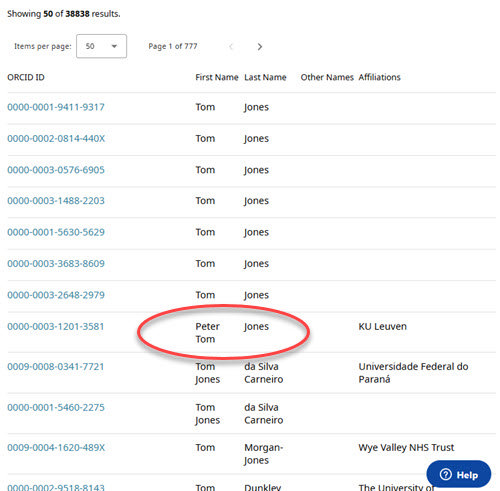
To register your account with Rambam Maimonides Medical Journal, your "First Name" must match the ORCID ID. You will enter "Peter Tom" in the First Name field, and "Jones" in the Last Name field.
How to Register Your ORCID iD Correctly
(This guide covers only the first of the 5 ORCID sign-up screens and important Account settings.)
1. Given name (Required)
Enter your given (first) name.
You may include a middle name or middle initial here.
Do not add titles (e.g., Dr, Prof, Mr, Ms).
Do not put your family/surname here.
Examples:
✅ Correct: Given name: Arjun (or Arjun R.)
❌ Incorrect: Given name: Dr Arjun / Menon
2. Family name (Required for RMMJ)
ORCID labels this field as “optional,” but RMMJ requires it.
Enter your family name (surname/last name).
If you’re from India/South Asia and commonly use an “initial name” for the family name, write the full family name, not just an initial.
Examples:
✅ Correct: Menon
❌ Not accepted for RMMJ indexing: M.
Why this matters: Indexing services (e.g., PubMed) file authors by family name. Missing or abbreviated family names can prevent proper linking to your publications and ORCID record.
3. Email (Primary)
Enter a primary email that you check regularly. Institutional emails sometimes change; choose the address you’ll keep long-term.
4. Email (Secondary)
Add a second email (e.g., your institutional address if your primary is personal, or vice versa). This helps you recover access and ensures reliable communication.
5. Next Step
Click Next Step and follow the on-screen instructions to complete your profile. When done, proceed to step #6.
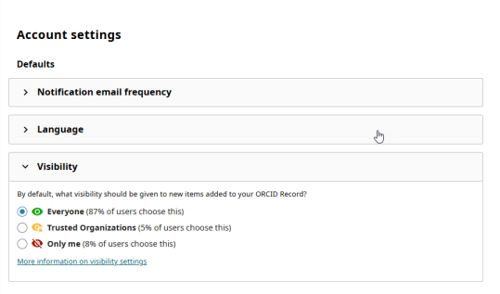
6. Go to Account Settings.
Make sure your account visibility is set to "Everyone". The Editorial Board must be able to see all your details.
7. Final check (important for RMMJ authentication)
Make sure the Given name and Family name in ORCID exactly match the names in your RMMJ author account (same order, spelling, capitalization, and spacing). Otherwise, your ORCID iD may not validate and your publications might not be indexed under your name.
Why Aren't My Keywords Detected?
Please make sure you used a coma (,) to separate keywords from each other. Any other punctuation will be considered to be part of the keyword.
In this case the system will detect an error and you will not be able to continue to the file upload page.
I Cannot Access the Submitted Paper | I Did Not Receive Confirmation of Submission
This situation usually occurs when the submitting author and the corresponding author are not the same person.
If you changed the corresponding author before completing submission, the system automatically assigns that person their own username and password. As a result, the confirmation email and all subsequent messages are sent only to the corresponding author, not to the submitting author.
After submission, all communication about the manuscript—including editorial updates—will be directed to the corresponding author.
Please contact them directly for details about the submission status.
Guidelines for Suggesting Reviewers
The system requires that you provide the names of 3–5 potential reviewers before you can continue with your submission. A reviewer is not someone affiliated with our journal.
Authors are expected to suggest qualified experts in the field who can provide knowledgeable reviews of the their submission. Your suggestions help the Editor-in-Chief and Section Editors identify appropriate peer reviewers.
Reviewers should be researchers or clinicians with expertise relevant to your manuscript.
Reviewers should not be from your own institution, recent collaborators, mentors, or close colleagues.
We recommend selecting experts cited in your references or identified through PubMed, Scopus, or Web of Science.
Please provide each reviewer’s title, full name, institutional affiliation, and email address. (If the title is unknown, select "Dr.")
Suggested reviewers are recommendations only; the final decision rests with the Editor.
Once you have entered at least three names, including their titles, you will be able to proceed with your submission.
Tips for New Authors
Many new authors struggle with writing their first manuscript. Although we do not provide mentoring services, we at Rambam Maimonides Medical Journal believe in encouraging new authors to tackle the challenge of publishing their research. We hope that the following books, available online, will help you as you prepare a paper for our – or any other – journal.